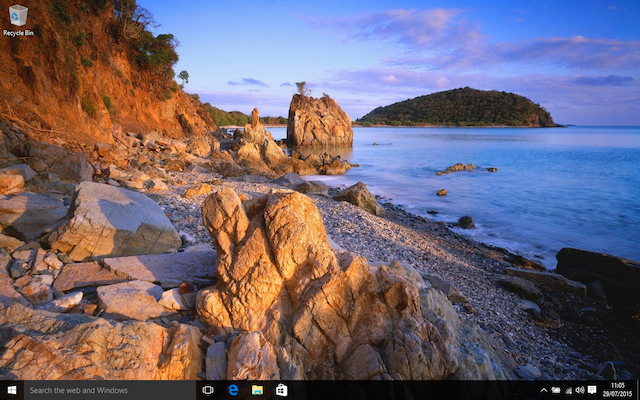
Windows 10 first-impressions review
The most eagerly awaited new version of Windows since -- well, since the last new version of Windows -- has finally arrived. Windows 10 is rolling out to consumers, and it’s a free upgrade for users of Windows 7 and Windows 8.1. So, what’s it like and has it been worth the wait? Here are our first impressions.
There are four main versions of Windows 10: Home, Pro, Enterprise and Mobile. The differences have been well documented elsewhere so we’ll skip the detail here, but most people will encounter the Home or Pro versions. This review is based on Windows 10 Home.
Microsoft Edge introduces new security risks in Windows 10
The Internet Explorer replacement Microsoft Edge is one of the headline features of Windows 10. With security at the heart of Microsoft's latest operating system, and the general concern about online safety, it makes sense to put the web browser under the microscope to see how it fares against the competition.
This is exactly what security analysts at Trend Labs have done. While the team concedes that Microsoft Edge beats Firefox's security and roughly draws level with Chrome's, the new web browser also introduces new security problems and threat vectors.
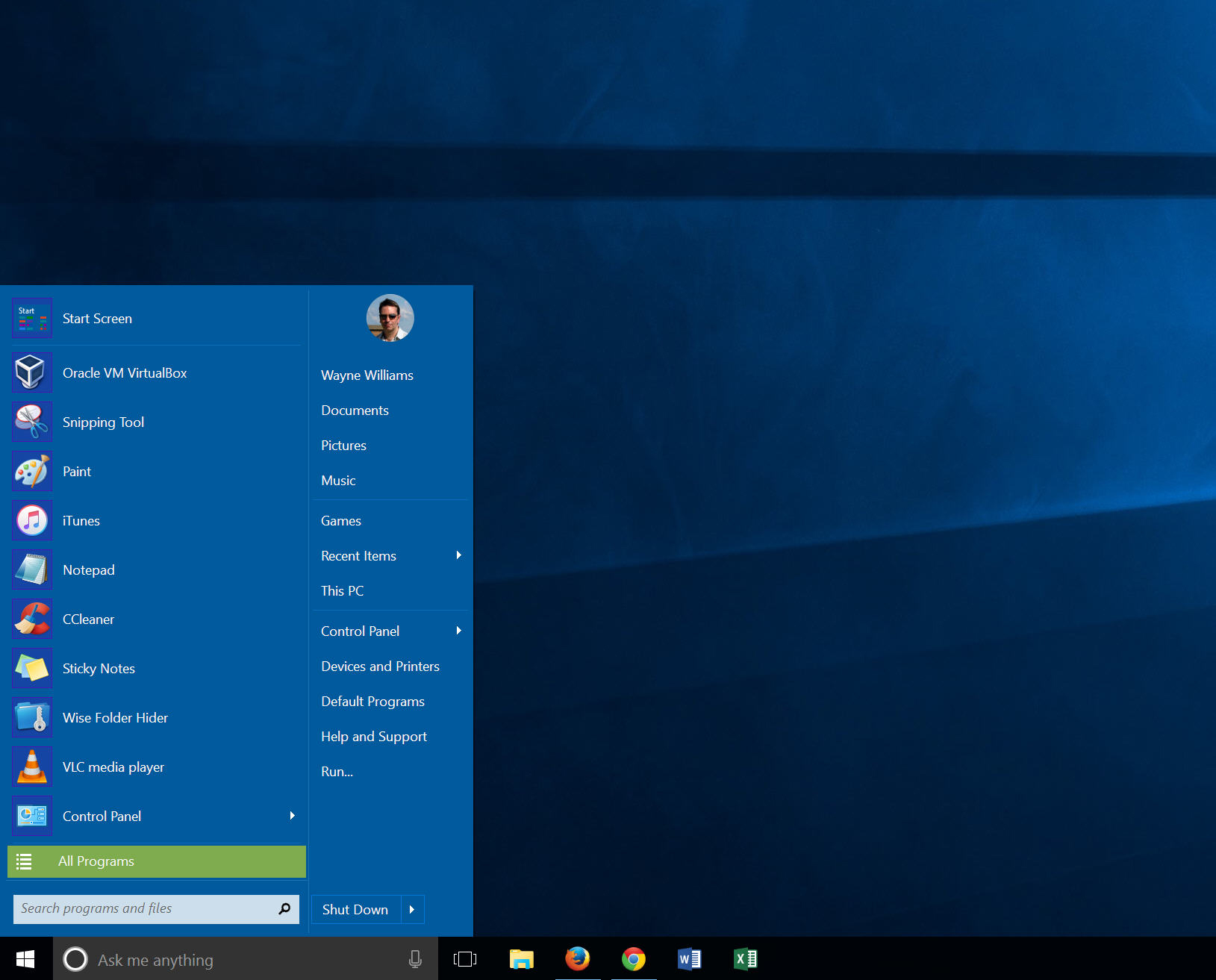
The best alternative Start menus for Windows 10
Windows 10 is here, and with it is the Start menu missing from Windows 8.x. The world rejoices. Except not everyone likes the new Start menu which blends the functionality of the Windows 7 menu with the Metro/Modern tiles from Windows 8.
If you’re not a fan of Windows 10’s Start menu (and some people are avoiding the free upgrade purely for this reason), the good news is there are a number of decent replacements available.

Recording Microsoft HoloLens videos: How it's done
I know this is some Iron Man-level stuff, but it is true. Microsoft’s HoloLens allows you to interact with holographic objects that are set in the real world.
If you told me five years ago that I’d be able to wear a futuristic augmented reality headset and do so many tasks, I wouldn’t have believed you. We already saw what HoloLens can do and how it can make us feel like the Iron Man (except the suit). The best thing is, we are barely scratching the surface of the capabilities of this headset. A recent research paper outlines how the headset can be used to grab live video and turn it into a hologram.
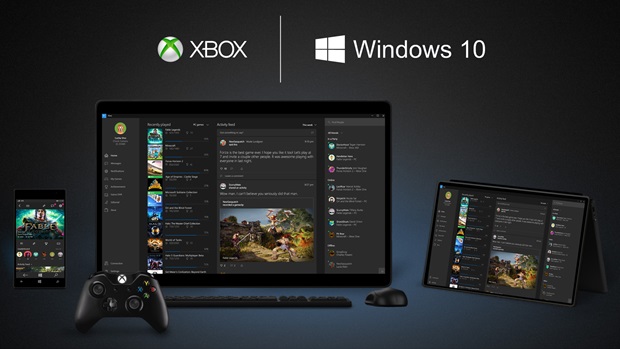
PC-to-Xbox One game streaming is in the pipeline for Windows 10
One of the features of Windows 10 that created ripples of excitement is the ability to stream Xbox One games from the console to a PC. But what about doing things the other way round?
If you like the idea of turning your already-powerful Xbox One into a fully upgradable games PC, you'll soon be able to do just that. Microsoft is currently working on PC-to-Xbox One game streaming, and you might not have to wait too long.

So you've upgraded to Windows 10... ready to leave the Insider program?
The wait is finally over. Over the past few months you've downloaded countless gigabytes of Windows 10 related files and now you've had enough. Windows 10 RTM is now installed on your computer and you're happy to stick with a relatively stable version for the foreseeable future.
You've had enough of being a Windows Insider, but how do you stop those pesky preview builds from being downloaded? Thankfully it is very simple to opt out of the Insider program so preview builds will become a thing of the past; here's what you need to do...

How to import iTunes playlists into Groove Music in Windows 10
If you’ve upgraded to Windows 10 you’ll likely have discovered an app called Groove Music. This is the new name for Xbox Music which was included in Windows 8.x.
When you first open the app there’s not much to see. Groove Music is a rather bland looking affair with lots of white space. The app will automatically import music from your PC, although if you’re anything like me, you’ll need to change the location it looks in to get all of your songs and albums added. To do this, and also import iTunes playlists into Groove Music, just follow these instructions:

How to disable Bing Search from Windows 10's Start menu
The Windows 10 Search box next to the Start button lets you search through Windows and the web. Type in a query, and the results will appear in your default browser. The first time you do this you’ll see it’s Bing producing the results.
If you don’t mind that, then great. Move along, there’s nothing to see here. But if you’re not a fan of Microsoft’s search engine, you can easily disable this feature. There is one downside however, and that’s you’ll also lose Cortana as well as Bing. If you don’t mind that, here’s what you need to do.

All the Windows 10 keyboard shortcuts you'll need (and a few more)
Forget touch screens, and moving your mouse, if you want to really want to speed through using Windows 10, keyboard shortcuts are where it’s at.
With the right key presses you can snap windows to where you want them, manage virtual desktops, awaken Cortana, and navigate seamlessly through the new OS like a seasoned professional. Just got Windows 10 today? Learn the following shortcuts, and it will be like you’ve been using it your whole life.

What's your view on Windows 10?
So now that a good number of you have installed Windows 10 (obviously a fair few of you will have been Windows Insiders for a while as well), we’d like to hear what you think of it.
The BetaNews audience has never shied away from passing comment on all manner of stories (it’s what we love about you guys) and Windows 10 has divided opinion pretty much from day one. It’s easy to pick holes in a work-in-progress OS, but now that Microsoft has released the completed version, has it changed your view at all? Do you love it, hate it, or sit somewhere in-between?
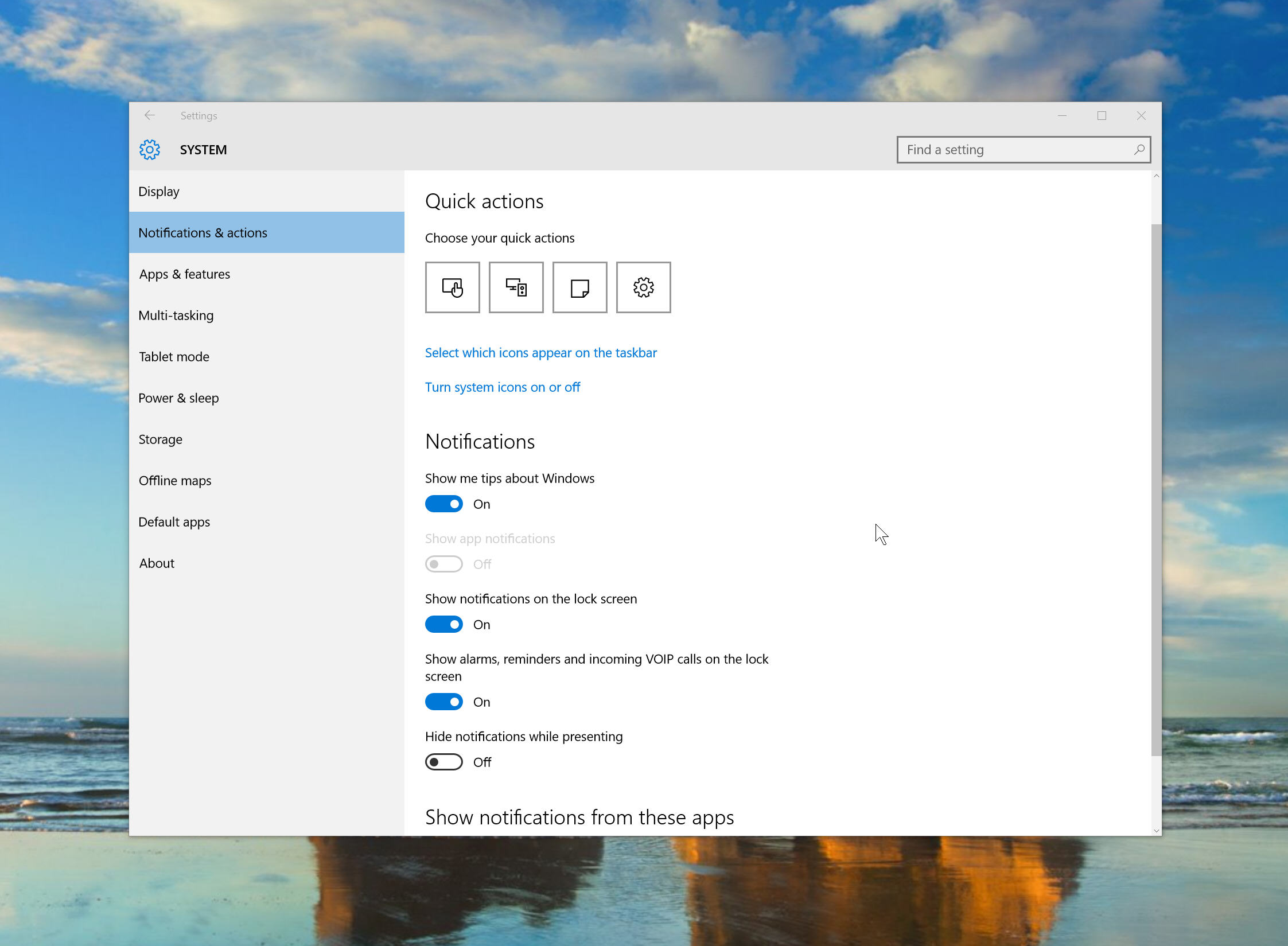
How to manage notifications in Windows 10
The new Action Center keeps you informed about what’s going on in Windows 10, providing a single place for all of the notifications from Windows and installed apps, and also informing you about new emails, instant messages, Facebook updates, and much more.
Notifications flash up on screen and come from all sorts of places, and if you’re not careful, you can easily find yourself bombarded with alerts. Fortunately it’s easy to trim down which notifications you see.
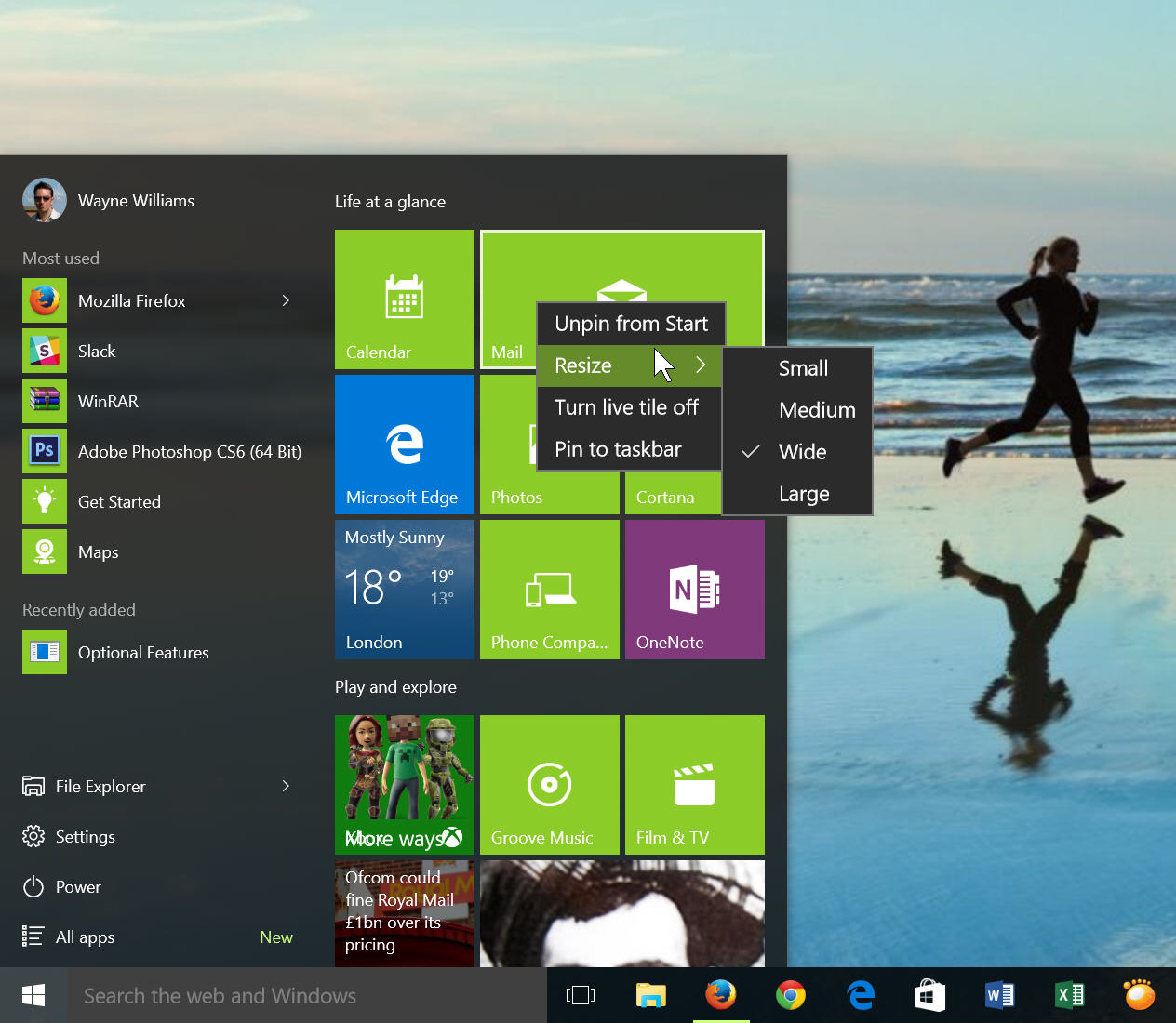
How to customize the Windows 10 Start menu
Hooray, Windows 10 has a Start menu. It may not be the Start menu you were hoping for (Windows 7 users I’m looking at you), but it’s there, and easily customized.
You can change the colors, transparency effect, and size and position of the tiles. If you don’t want the tiled interface you can turn this off, and just have a straightforward Windows 7-style menu. Here’s what you can do.
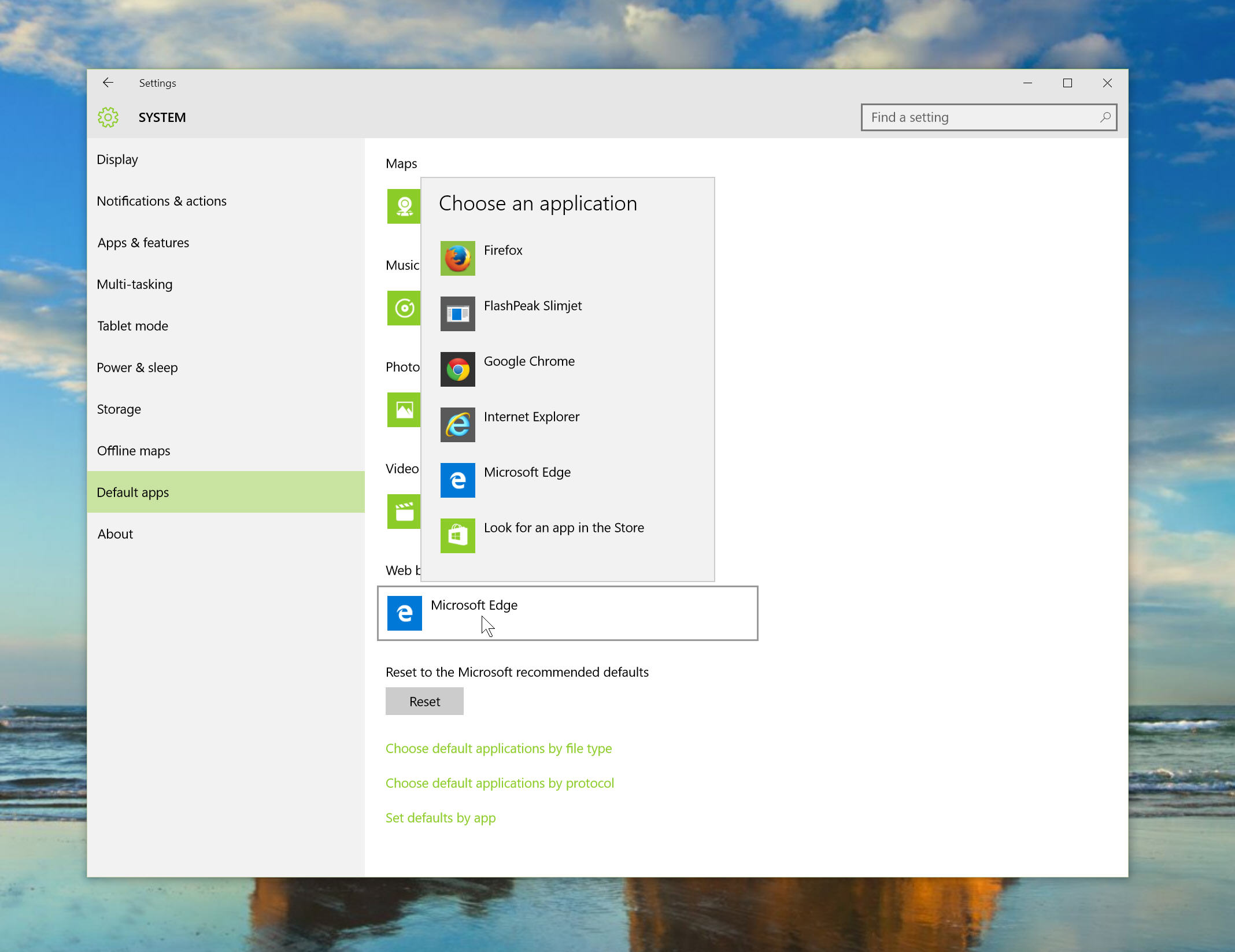
How to make Firefox or Chrome the default browser in Windows 10
Obviously Microsoft’s Edge browser is the new default choice in Windows 10, and it’s definitely worth giving it a try. I’ve found it to be speedy and surprisingly good. Persevere long enough and you might grow to like it as I have.
That said, if you prefer to use Chrome or Firefox, with all the add-ons and customizations in place, I really couldn’t blame you. Edge isn’t (yet) as flexible, and if you already use Google or Mozilla’s browser for syncing content between devices, then it makes sense to use the same browser in Windows 10. Here’s how to setup a rival browser as the default option.

How to change the default search engine in Microsoft Edge
Windows 10's new modern web browser comes with Bing as its default search engine. This will, of course, surprise absolutely no one. Some people will be more than happy with that choice, but others will prefer to switch to using something different. Like Google.
The process isn’t especially intuitive but it is very straightforward and won’t take more than a few seconds of your time. Here’s how to do it.
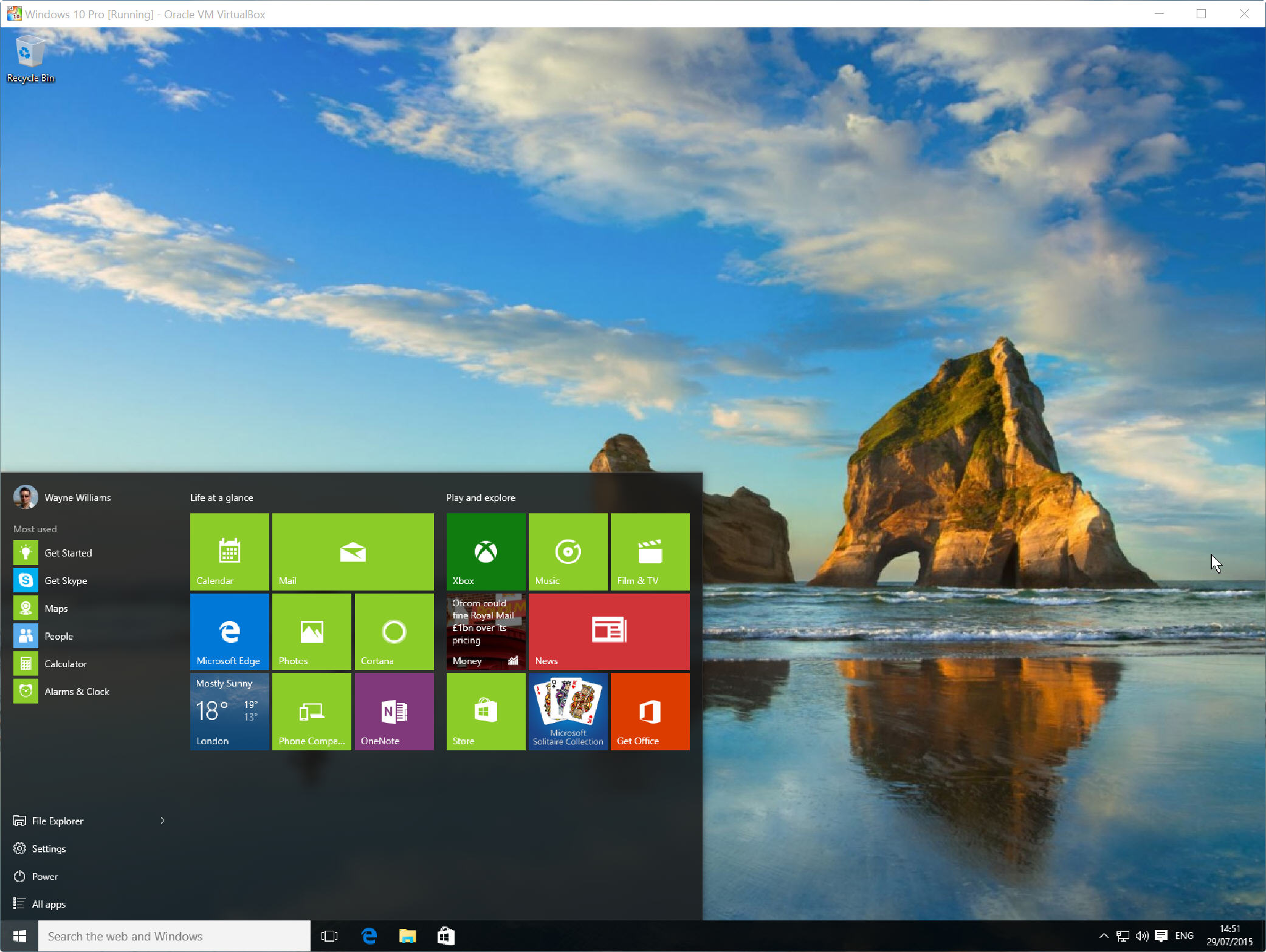
How to install Windows 10 on Oracle VirtualBox -- no Windows key required
Now that Windows 10 is officially available, there’s a good chance you’ll be updating your existing PCs to the new OS. There are reasons for and against doing this of course.
If you’re not quite ready to jump aboard Windows 10, you might want to install it in a virtualized environment instead. This way you’ll be able to try it out -- no Windows key required -- without risking your current setup, and see whether you like it or not. It’s certainly worth playing around with.